Cloudflare template
Fork eetr-auth, configure it for your domain, and deploy your own OAuth 2.1 / OIDC server to the edge.
eetr-auth is designed to be used as a reusable Cloudflare Workers template. Fork it,
configure it for your domain, and deploy a fully functional OAuth 2.1 + OpenID Connect server to
Cloudflare's edge in minutes.
What you get
- A production-ready OAuth 2.1 / OpenID Connect authorization server
- Argon2id password hashing via an isolated Cloudflare Worker
- An admin dashboard for managing users, clients, and tokens
- Passkey (WebAuthn) support
- Multi-factor auth — email OTP (site-wide) and authenticator-app TOTP (per-user, RFC 6238) — plus email verification
- Cloudflare D1 (SQLite) for persistence and R2 for JWKS, avatars, and site assets
- A published TypeScript client library (
@eetr/eetr-auth-client)
What you provide
| Requirement | Where used |
|---|---|
| Cloudflare account (Workers, D1, R2, Images) | All infrastructure |
| Custom domain (recommended) | AUTH_URL, ISSUER_BASE_URL |
| Resend API key | Transactional email (password reset, MFA, verification) |
| Terraform CLI | Provisioning D1 + R2 |
Step 1 — Fork or clone
git clone https://github.com/eetr-ai/eetr-auth.git my-auth-server
cd my-auth-server
npm install
Step 2 — Customize the worker name
The auth worker is named eetr-auth by default. To use a custom name, set worker_name in
infra/terraform/terraform.tfvars:
worker_name = "my-auth-server"The Wrangler config is rendered from infra/wrangler.template.jsonc during npm run setup:remote,
and the WORKER_SELF_REFERENCE service binding is generated to match worker_name automatically.
Leave argon-hasher's name alone
You do not need to rename argon-hasher — it is a shared internal service and its name is fixed
in the ARGON_HASHER service binding.
Step 3 — Configure your domain
Set the domain where the auth server will be accessible — it is used in OAuth flows and email
links. Configure these in infra/terraform/terraform.tfvars:
issuer_base_url   = "https://auth.yourdomain.com"
auth_url          = "https://auth.yourdomain.com/api/auth/session"  # full Auth.js session endpoint
jwks_cdn_base_url = "https://cdn.yourdomain.com"
Step 4 — Provision and deploy
See Deployment for the full guide. In summary:
# 1. Provision D1 + R2
cd infra/terraform && terraform init && terraform apply && cd -

# 2. Deploy the password hasher, then run automated setup
npm run deploy:argon-hasher
npm run setup:remote
Harden the seeded admin / admin account immediately after first login.
Customization points
Site identity & branding
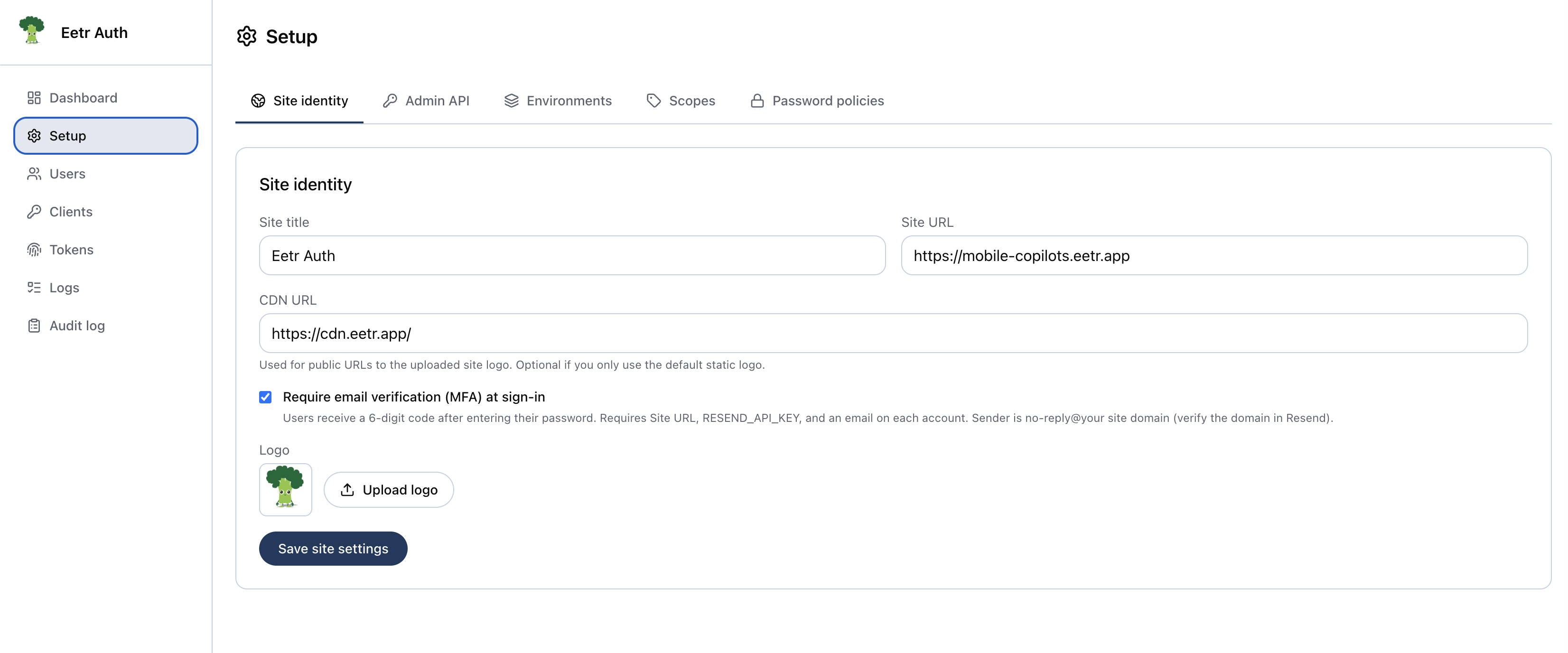
Configure under Dashboard → Setup → Site identity:
- Site title — shown on the sign-in/authorize pages and in emails; also the issuer label users see when they enroll an authenticator app (TOTP).
- Site logo — image upload (JPEG/PNG/WebP, up to 5 MB) stored in R2.
- Site URL — the public auth URL; required so transactional email can build working links.
- CDN URL — optional public base URL for every asset in the bucket: the uploaded logo and user
avatars alike, including the
pictureclaim in id_tokens and/userinfo. It takes precedence over theAVATAR_CDN_BASE_URL/JWKS_CDN_BASE_URLvariables, which remain the deploy-time default when it is blank.
Branding scope
Only the title and logo are visual branding — there is no theme/color, font, or favicon customization.
The server uses Resend for transactional email. Templates live in
apps/auth/src/lib/email/ — customize the HTML/text there.
Scopes
Default scopes (openid, profile, email) are seeded during db:bootstrap. Add custom scopes
in the admin dashboard → Scopes.
Password hashing
The default is argon (Argon2id via the argon-hasher Worker). To use an alternative, set
HASH_METHOD in infra/wrangler.template.jsonc and implement the hash interface in
apps/auth/src/lib/auth/.
Template boundaries — what is NOT committed
These files contain instance-specific values and are gitignored — you generate them locally:
| File | Description |
|---|---|
apps/auth/wrangler.generated.jsonc | Generated from Terraform with real D1/R2 IDs |
infra/out/terraform.tf.json | Terraform output JSON |
infra/terraform/terraform.tfvars | Your account ID and resource names |
apps/auth/.env.local | Local env vars |
apps/auth/.dev.vars | Wrangler local dev secrets |
The committed infra/wrangler.template.jsonc is the template — placeholders get rendered into
wrangler.generated.jsonc by the infra scripts.
Updating the template
To pull in upstream changes after you've deployed your instance:
git remote add upstream https://github.com/eetr-ai/eetr-auth.git
git fetch upstream
git merge upstream/main
Then re-run the automated upgrade (applies new schema patches, refreshes config, provisions only missing secrets, and redeploys):
npm run upgrade:remoteSee Upgrades for details.